![Goodwood-FullLogo-Black.svg]](https://support.goodwood-consulting.com/hubfs/Goodwood-FullLogo-Black.svg)
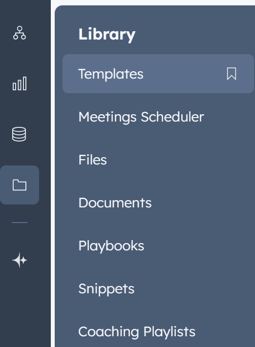
1. In your HubSpot account, go to Library and click Templates.
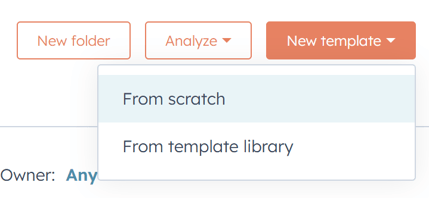
2. Click New template and select From scratch.
3. Enter a name and subject for your template.
4. Set the sharing permissions.
- To make the template private so only you can view and use it, click the Shared with everyone dropdown and select Private.
- You can adjust sharing settings later from the templates dashboard.

5. Use the Select a folder dropdown to add the template to a folder if desired.
6. Enter the body of your email.
- Use the formatting tools at the bottom to modify text.
- For font style, size, or text alignment, click the More dropdown.
- To add hyperlinks, click the link icon.
- To insert an image, click the image icon.
- To include personalization tokens, click the Personalization dropdown.
- To insert snippets, sales documents, scheduling links, or videos, click the Insert dropdown.
Templates must contain text. Templates with only images won’t attach successfully. Avoid copying and pasting styled content from other text editors, as it may cause formatting issues. If necessary, paste only plain text.

7. When you're done, click Save template.
Once your template is created, you can use it to send emails directly from the CRM, your email inbox (via the sales extension), or include it in your sequences.