![Goodwood-FullLogo-Black.svg]](https://support.goodwood-consulting.com/hubfs/Goodwood-FullLogo-Black.svg)
This article will show you:
- Common Uses for Lists
- Types of Lists
-
How to Create a List
- How to View and Edit Lists
- How to Delete a List
- How to Restore a Deleted List
- How to Clone a List
-
How to View a List's Activity Log
Common Uses for Lists
Many HubSpot tools depend on lists to target specific groups of contacts. Common uses for lists in HubSpot include:
- Sending marketing emails to a specific list of contacts.
- Creating lists of bounced contacts.
- Enrolling contacts in workflows.
- Applying list membership filters in other lists or custom reports.
- Building ad audiences using contact and company lists.
- Sending customer satisfaction surveys to contacts using a static list.
Types of Lists
In HubSpot, there are two types of lists: active lists and static lists.
Active Lists
Active lists automatically update their members based on set criteria. Records are added to the list when they meet the criteria and removed when they no longer meet it.
When to use active lists:
- Sending tailored marketing emails based on each contact's behavior and properties. For example, an active list can automatically manage a dynamic group of newsletter subscribers.
- Making outbound calls to contacts filtered by their behavior and property values.
- Grouping contacts by lifecycle stage to consistently identify behavior and properties at each stage.
- Segmenting records based on frequently changing properties, such as the HubSpot score.
Static Lists
Static lists capture records that meet specific criteria at the time the list is created. These lists do not update automatically, so new records meeting the criteria won’t be added unless done manually. You can also manually add or remove records from static lists.
When to use static lists:
- Manually adding records to a workflow.
- Sending one-time email blasts or infrequent campaigns, where the list remains unchanged (e.g., event attendees, internal staff newsletters, or trade show contacts).
- Grouping records manually when there is no shared list criteria.
- Segmenting records to bulk delete them from your account.
How to create a list
1. In your HubSpot account, go to CRM > Lists.
2. In the upper-right corner, click Create list.
3. In the left panel, select:
- Contact-based to create a list of contacts.
- Company-based to create a list of companies.
- Deal-based to create a list of deals.
4. Enter the list details.
In the right panel, fill in the following:
- List name: The internal name of the list (required).
- Description: A brief explanation of what the list contains.
- What kind of list are you creating: Choose between Active list (updates automatically) or Static list (remains unchanged). You can also see the number of lists used here.
- Custom properties: If you have custom list properties, set them here. To add custom properties to the form, click Customize the 'Create list' form.
5. Click Next in the upper-right corner.
6. In the left panel, define the criteria for the contacts, companies, or deals you want to segment:
- Click Add filter.
- Scroll or search for a filer category, then select a property or activity to filter by.
- Choose options based on the property or field type:
- Dropdown select/Checkbox: Use the dropdown to select values.
- Text: Enter text values separated by semicolons (e.g., Boston; Chicago).
- Numerical: Enter number values separated by semicolons (e.g., 10; 25; 30).
- Date picker: Use the calendar to select a date.
7. Use associated object filters (if applicable).
By default, filters include records when any associated objects meet the criteria. To filter based on specific associations:
- Click the Any associated [object] dropdown, then select:
- Any [object]: Includes all associated records (e.g., any company associated with a contact).
- Primary [object]: Only the primary associated record (e.g., primary company).
- With label (Professional & Enterprise): Filter based on associations with a specific label.
8. Add and organize filters.
- Click + Add filter to add more criteria within the same group (uses AND logic: all criteria must be met).
- To create additional filter groups (uses OR logic: one group’s criteria must be met), click + Add filter group.

- To modify filters:
- Delete: Hover over the filter and click the Delete icon.
- Clone or Delete a group: Click the Actions dropdown at the top right of the group and select Clone or Delete.
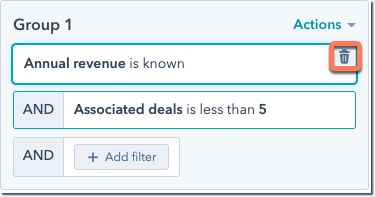
9. Click Test in the left panel and choose a record to test the filters.
10. Click Save list in the upper-right corner.
The list will begin processing based on your criteria. A preview of records will appear, and once processing is complete, the exact count will display under the list name.
After saving, you can continue editing the list as needed.
How to View and Edit a List
Once you create a list, you can update its details and perform actions like cloning, deleting, or using it in other HubSpot tools. To make edits, users must have Write permissions for lists.
1. Go to CRM > Lists.
2. Click on the list you want to view or edit.
To see unused lists not currently linked to other HubSpot tools, click the Unused lists tab.
3. Use the search bar in the top-right corner to find specific records within your list.
4. Click the pencil icon next to the current name, enter a new name, and press Enter or click outside the text box to save.
5. For active lists, select Edit filters in the left panel. Adjust your criteria, then click Save changes in the top-right corner.
6. Click column headers to sort records by property values. Use the Added to list date column to filter by when records were added.
7. Go to the Settings tab, then click Notifications in the left sidebar to adjust list-related alerts.
8. Under the Settings tab, navigate to Exclusions in the left sidebar to manage excluded items.
9. To convert an active list to static, go to Settings > Auto-convert to static in the left sidebar.
10. Click Details in the upper-right corner to view information like the list name, type, creation and update dates, recent contact changes, creator details, List ID, ILS list ID, and associated HubSpot tools or assets.
- List ID: Used for integrations or the Lists API.
- ILS List ID: Used with the Exports API.
11. Open the Actions dropdown menu to access more options for managing your list.
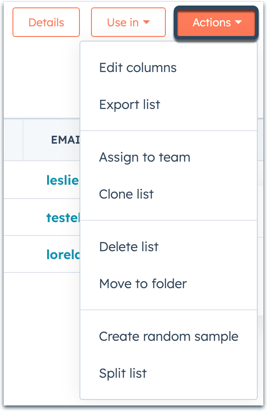
- Edit Columns: Choose the properties to display for each record in the table.
-
- To apply the column configuration only to the selected list, click Save.
- To apply the configuration to all lists of the same object type, select the Apply to all [contact/company] lists checkbox and then click Save.
- Export List: Download a copy of the list.
- Assign to Team (Enterprise only): Assign the list to a specific team.
- Clone: Create a duplicate of the list.
- Convert to Static List: Transform an active list into a static list.
- Delete List: Permanently remove the list.
- Lists that are actively used elsewhere in HubSpot cannot be deleted.
- Deleting a list does not delete the records within it.
- Static lists are permanently deleted, while active lists can be restored within 90 days from the Recently deleted tab.
- Move to Folder: Organize the list by moving it to a designated folder.
- Random Sample: Generate a random sample of contacts from the list.
- Split List (Marketing Hub Enterprise only): Create a random split from the list.
- Resync with Salesforce (Professional and Enterprise only): Manually trigger a resync of the list with Salesforce when using the Salesforce integration for contacts.
- Limit Salesforce Sync (Professional and Enterprise only): Use the list as an inclusion list to specify which contacts sync to Salesforce. Learn more about Salesforce inclusion lists for contacts.
12. To use the list in other HubSpot tools, click the Use in dropdown menu, then select an option:
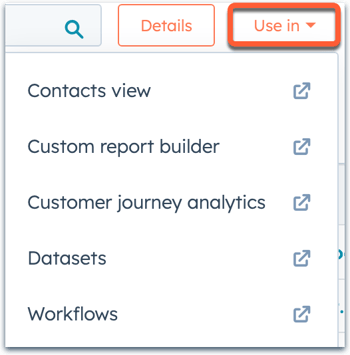
- Campaigns (Marketing Hub Professional and Enterprise only): Associate contact-based static lists with campaigns. A single list can be linked to multiple campaigns.
- Contacts/Companies/Deals View: Access the list's records directly on the object’s home page.
- Custom Report Builder (Professional and Enterprise only): Create a custom report using your list as the data source.
- Customer Journey Analytics (Marketing Hub and Sales Hub Enterprise only): Build a journey report based on the list.
- Datasets (Operations Hub Enterprise only): Use the list to create a dataset.
- Workflows (Professional and Enterprise only): Set the list's membership as an enrollment trigger for workflows.
How to Delete a List
If your account has reached its list limit, you can delete a list without affecting the records it contains.
Only users with Write permissions for lists can delete them.
Note: Deleted lists can be restored within 90 days from the Recently deleted tab.
1. Go to CRM > Lists.
2. To filter for lists that haven’t been used or updated in the last two months, go to the Unused lists tab. You can also delete lists from the Lists library tab.
3. To delete a single list:
- Hover over the list
- Click the More dropdown menu
- Select Delete list
4. To bulk delete multiple lists:
- Select the checkboxes next to the lists you want to delete.
- Click Delete at the top of the table.
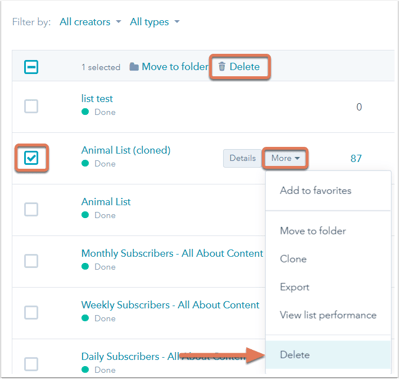
5. In the confirmation dialogue box, click Delete to complete the process.
How to Restore a Deleted List
Deleted lists can be restored within 90 days of deletion. After 90 days, the list will be permanently deleted. Restored lists will retain their original ID.
1. Go to CRM > Lists.
2. Click the Recently deleted tab.
3. Find the list you want to restore, hover over it, and click Restore.
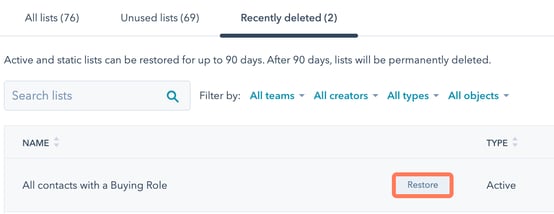
4. In the dialogue box, click Restore to complete the process.
How to Clone a List
1. Go to CRM > Lists.
2. Hover over the list you want to clone, click the More dropdown menu, and select Clone.
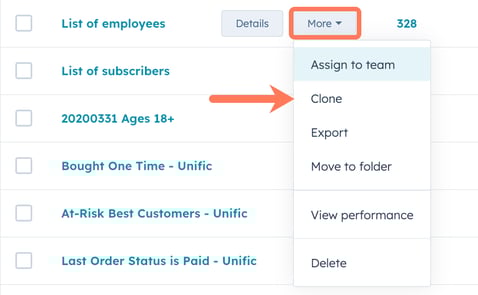
3. In the popup, update the list's name if necessary.
4. Choose one of the following options:
- Clone as an active list: Creates a new active list with the same filters.
- Clone as a static list: Creates a new static list with the same filters.
- Clone as a static list (membership only): Removes the filters and clones only the list's membership.
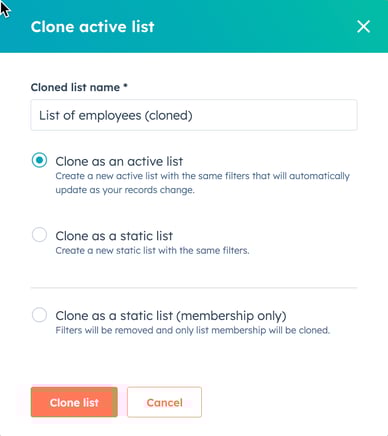
5. Click Clone list.
6. Adjust the list's criteria as needed, then click Save list in the upper-right corner.
How to View a List's Activity Log
You can review a list's activity log to track changes and actions related to the list. These actions include:
- When the list was created, edited, deleted, or restored.
- When the list was used in another tool, such as a workflow.
- When a list notification was triggered.
- When the list was converted from active to static.
1. Go to CRM > Lists.
2. Click the name of the list you want to review.
3. Navigate to the Activity tab.
4. Use the following filters to refine your search:
- Event: Select an event type from the dropdown menu.
- Version: Choose an older version of the list from the dropdown menu.
- Modified by: Filter changes by selecting a specific user.