![Goodwood-FullLogo-Black.svg]](https://support.goodwood-consulting.com/hubfs/Goodwood-FullLogo-Black.svg)
Contacts can access these scheduling pages through a meeting link. By connecting your Gmail or Office 365 calendar, scheduled meetings will automatically sync, ensuring your appointments are always up-to-date.
1. Go to Library > Meetings Scheduler.
2. Click Create scheduling page in the upper right corner.
3. In the dialog box, choose a meeting type:
- One-on-One: Allows the contact to schedule time with you or the specific user for whom you're creating the scheduling page.
- Group (available with Sales Hub or Service Hub Starter, Professional, or Enterprise): Displays time slots when all selected team members are available. Ideal for scheduling meetings with multiple team members simultaneously.
- Round Robin (available with Sales Hub or Service Hub Starter, Professional, or Enterprise): Shows the individual availability of selected team members, helping contacts book meetings with the most available team member.
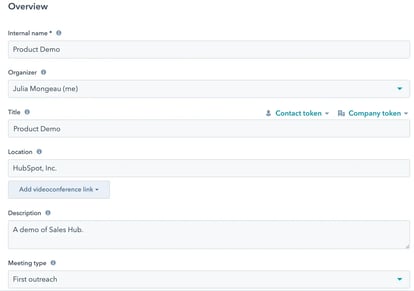
4. On the Overview page, you can edit the basic details of the scheduling page:
- Internal Name: The name that appears when the meeting link is included in an email.
- Business Unit: If you have the business units add-on, choose the business unit to associate with this meeting from the Business unit dropdown.
- Organizer: The meeting owner or the user with whom the contact will schedule a meeting. To create scheduling pages for other users, you must have the necessary permissions, and the user must have activated the meetings tool. Select their name from the Organizer dropdown menu.
- Title: The name of the calendar event shared with the contact. For example, "Product Demo" will appear as the event name. You can personalize the subject by clicking Contact token or Company token.
- Location: Provide details on how and where the meeting will take place, such as a call-in link or physical address. This location will appear in the contact's calendar invite and the event created on your default personal calendar.
- Add Videoconference Link: If you're using HubSpot's integrations with Microsoft Teams, Zoom, UberConference, or Google Meet, you can add a video conferencing link. If no integration is set up, this option will not be available. For other video conferencing software, developers can use the Video Conference Extension API to integrate.
- Cancel and Reschedule: Toggle this option on to include cancel and reschedule links in the event description, allowing contacts to modify or cancel the meeting if needed.
- Description: Add a description of the meeting that will appear in the calendar invite sent to the contact and the event created on your default personal calendar.
 5. Click Next.
6. Select which team members you want to include in the group or round robin meeting.
This is for Sales Hub or Service Hub Starter, Professional, or Enterprise users only.
1. Click Add team member in the top right.
2. Click the Team members dropdown menu in the right panel and select another team member, then click Confirm.
3. Click Next.
7. Customize your meeting availability and booking form on the Scheduling page.
1. At the top of the page, customize the scheduling page URL.
This URL is the link contacts will use to book meetings on your calendar and cannot be changed once created. Only alphanumeric characters, hyphens, and underscores are supported — special characters are not allowed.
2. If you're creating a one-on-one, group, or round-robin scheduling page and have set up HubSpot Payments or Stripe payment processing, you can enable a payment link by toggling on the Collect payments switch.
1. To configure the payment link, go to the Payment tab, click the Payment link dropdown menu, and select the desired payment link.
2. When a contact books a meeting through this scheduling page, the checkout page for the selected payment link will be displayed.
 Welcome
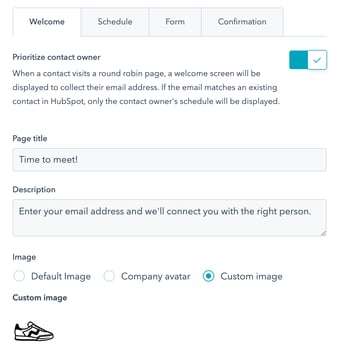
If you're creating a round-robin meeting, you can configure settings on the Welcome tab to prioritize the contact owner's scheduling page. If you prefer not to prioritize the contact owner's page, skip ahead to the Schedule tab.
To prioritize the contact owner's scheduling page for known contacts, toggle the Prioritize contact owner switch to On.
When this setting is enabled, a welcome screen will prompt the contact to enter their email address before accessing the scheduling page. Customize the welcome screen as follows:
- Page Title: Enter the text to display on the welcome screen.
- Description: Provide a brief explanation of why the visitor's email address is required.
- Image: Choose an image to display on the welcome screen:
- Default Image: Displays HubSpot's default meetings icon.
- Company Avatar: Uses the company avatar associated with the email domain of the user who created the scheduling page, populated via HubSpot Insights.
- Custom Image: Upload a custom square image from the file manager. The image must be square for proper rendering.
- To upload a custom image, hover over the avatar, click the edit pencil icon, and select Change photo. In the right panel, choose your desired image.
8. Customize the following on the Schedule tab:
-
Title: Enter the name that will appear above the calendar on the scheduling page.
-
Duration: Set the length of time visitors can book meetings with you. Click the Duration options dropdown menu to select the desired durations. To offer additional options, click + Add custom duration.
-
Time Zone: Select your time zone by clicking the Time zone dropdown menu. Your availability will be based on this time zone.
-
Availability Window: Use the dropdown menus to define the days of the week and the time slots when you're available. Click + Add hours to include additional time slots.
-
Consider Working Hours: Toggle the Consider working hours option to On if you want meetings to be scheduled only during users' set working hours. If users don’t have working hours configured, bookings will default to the availability window specified above.
9. To customize the form contacts will see when booking a meeting with you, click the Form tab.
- By default, when booking a meeting, contacts are required to provide their First Name, Last Name, and Email. If a meeting form is submitted, a unique email address will always create a new contact, even if an existing contact has a matching user token. In this case, the existing contact's email address remains unchanged.
- To add a CAPTCHA challenge to the scheduling page to prevent spam submissions, click to toggle the CAPTCHA (spam prevention) switch on.
- To add a CAPTCHA challenge to the scheduling page to prevent spam submissions, click to toggle the CAPTCHA (spam prevention) switch on. Turning this option on will automatically disable the Auto-submit form when all fields are pre-populated setting.
10. To customize the contact's experience after booking, click Confirmation.
Users with an assigned Sales Hub or Service Hub seat can direct contacts to a specific webpage, landing page, or external URL after they book a meeting.
1. Navigate to the Confirmation section.
2. Select the Redirect to another page option.
If you've installed ad network pixels, this redirect supports tracking meeting bookings with external platforms like Google and Facebook.
3. Click the dropdown menu and select the desired page.
4. To redirect to an external page:
1. Click Add external link.
2. In the dialogue box, enter the URL and click Add.
5. Click Next.
11. On the Automation page, you can add additional reminder emails to be sent out before the meeting or turn off the automatic booking confirmation email.
By default, a confirmation email is sent to contacts who book a meeting using this scheduling page. To disable this, toggle off the Confirmation email switch.
Sending pre-meeting reminder emails
- Toggle on the Pre-meeting reminder switch to enable reminder emails before the meeting.
- Reminder emails are only sent if your calendar is connected.
- If the Turn on meeting reminder by default setting is active for your account, new scheduling pages will inherit the default reminder settings.
- Set the timing for reminders:
- Enter a number in the text field to specify how far in advance the email should be sent (e.g., weeks, days, hours, or minutes).
- Select the desired time unit from the Scheduled reminder email dropdown menu.
- To add up to three reminder emails:
- Click + Add reminder for additional emails.
- To delete a reminder, click the trash can icon.
Customizing reminder emails
- To include additional details in the email, such as the meeting Description or Time:
- Click the Personalize dropdown in the toolbar.
- Choose the relevant property token from the menu.
- To preview the email that contacts will receive:
- Click Preview reminder email. The email will be displayed in the language selected in the Booking page language dropdown menu.