![Goodwood-FullLogo-Black.svg]](https://support.goodwood-consulting.com/hubfs/Goodwood-FullLogo-Black.svg)
You can enroll contacts individually or in bulk in HubSpot. Here are the ways to enroll contacts:
- Sequence Tool: Use the sequence tool and its embedded automation features.
- Individual Contact Record: Enroll directly from a contact's record.
- Contacts Index Page: Select and enroll contacts from the index view.
- Lists: Enroll from both active and static lists.
- Workflows: Use contact-based workflows (available in Sales and Service Hub Enterprise).
Additionally, you can start a sequence directly from your inbox with the HubSpot Sales extension. To do so, you must have connected your email inbox to the HubSpot Sales Gmail extension, the HubSpot Sales Outlook desktop add-in, or the HubSpot Sales Office 365 add-in.
Enrolling an individual contact in a sequence
From the Sequence Tool:
1. Navigate to Automations > Sequences.
2. Click the Manage tab in the top left.
3. Select the name of the sequence you want to use.
4. Click Enroll contacts in the top right corner of the sequence page.
5. In the right panel, check the box next to the contact(s) you want to enroll.
6. At the bottom of the panel, click Next to proceed.
[scroll down to "In the Select sequence dialog box:" on this page]
From a Record:
1. Navigate to your records:
-
Contacts: Go to CRM > Contacts.
-
Companies: Go to CRM > Companies.
-
Deals: Go to CRM > Deals.
-
Tickets: Go to CRM > Tickets.
-
Custom Objects: Go to CRM and select the custom object.
Note: Only contacts can be directly enrolled in sequences. Other record types must have an associated contact for enrollment.
2. Select the record you want to enroll.
3. In the left panel, click the Enroll in a sequence icon. If it’s not visible, click the More icon and then select Enroll in a sequence.
4. In the dialog box, hover over the desired sequence and click Select.
In the Select sequence dialog box:
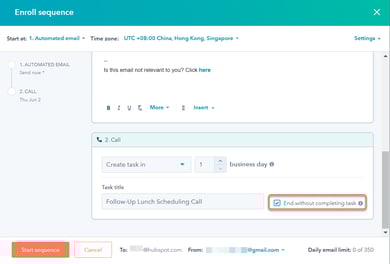
1. Open the Start at dropdown menu and choose the step where the contact should begin the sequence.
2. Use the Time zone dropdown menu to select the desired time zone.
All sequence steps will follow this time zone.
3. To customize follow-up settings, click Settings in the top right.
Use the "Start at" dropdown to choose the step where the contact should begin.
Select a time zone using the Time zone dropdown. All sequence steps will execute in the chosen time zone.
4. By default, the first email in the sequence is sent immediately. To schedule it:
-
Open the Send now dropdown menu and select Send later.
-
Choose the desired date and time for the email to be sent.
5. For follow-up emails, go to the Send email in section and specify the number of days that should elapse after the previous step before the email is sent.
6. At the bottom of each email template, you can use the rich text toolbar to format the text or insert a link, snippet, document, or add a video.
7. To customize your sequence tasks:
- Schedule Tasks: Set the number of days before the task is created.
- Create Tasks Immediately: To generate a task right after the previous step, click the dropdown menu on the task step and select Create task immediately.
- Edit Task Title: Enter a new title in the Task title field to update it.
- Continue Without Completing Tasks: By default, the sequence pauses until the task is completed. To allow the sequence to proceed even if the task remains incomplete, check the Continue without completing task box.
8. Click Start sequence in the bottom left corner.
Enrolling multiple contacts in a sequence
From the sequence tool:
1. Go to Automations > Sequences.
2. Click the Manage tab in the top left corner.
3. Select the name of the sequence you want to use.
4. Click Enroll contacts in the top right corner of the sequence page.
5. In the right panel, check the boxes next to the names of the contacts you wish to enroll.
6. Click Next at the bottom of the right panel to proceed.
[scroll down to "Customizing follow-up options and delays for All contacts" on this page]
From the Contacts Index Page:
1. Go to Contacts > Contacts.
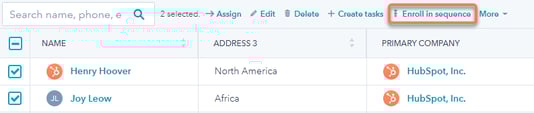
2. Check the boxes next to the contacts you want to enroll.
3. Click Enroll in sequence at the top of the table.
[scroll down to "Customizing follow-up options and delays for All contacts" on this page]
From Lists:
1. Go to Contacts > Lists.
2. Click on the name of the list you want to enroll contacts from.
3. To select all contacts in the list, click the checkbox in the top left corner of the table, then choose Select all [x] contacts.
4. To select specific contacts, check the boxes next to the desired contacts.
5. Click Enroll in sequence at the top of the table.
Customizing follow-up options and delays for all contacts
1. Click All contacts.
2. In the right panel, use the Start at dropdown menu to choose the step where contacts will begin the sequence.
Use the Start at dropdown menu to choose the step where contacts will begin the sequence.
3. Select a time zone using the Time zone dropdown menu.
All steps will follow the selected time zone.
4. To set a specific send time for the first email:
- Open the Send now dropdown menu and choose Send later.
- Pick a date and time for the first email.
4. For follow-up emails, specify the delay between steps in the Send email in section.
Customizing sequence and email content for individual contacts
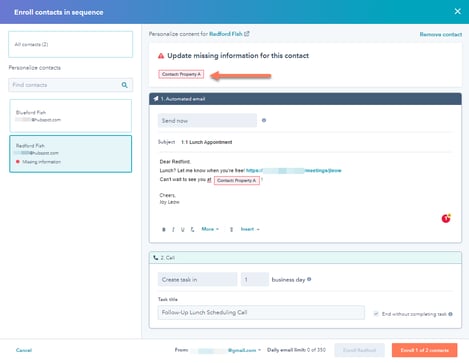
In the left panel, click a contact’s name or use the search bar to find specific contacts.
- At the bottom of each email template, you can use the rich text toolbar to format the text or insert a link, snippet, document, or add a video.
To edit tasks:
- Update the Task title field to change the title.
- Check the Continue without completing task box to allow the sequence to continue without completing a task.
- Tokens with missing values will appear in red at the top.
- Click a token, enter a value, and select Update all. Repeat for each token as needed.
Enrolling contacts
To enroll all selected contacts:
- Click Enroll [all] of [X] contacts in the bottom right.
- Confirm by clicking Enroll [X] contacts in the dialog box.
To enroll contacts one at a time:
- 1. Select the contact in the left panel.
- Click Enroll [contact name] in the bottom right.
- Confirm by clicking Enroll in the dialog box.
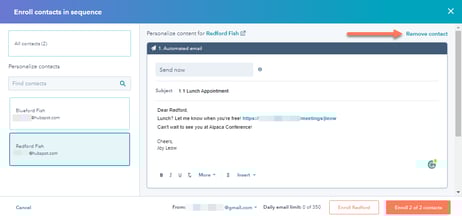
To remove a contact from bulk enrollment:
- In the left panel, select the contact’s name.
- Click Remove contact in the upper right corner.
From Workflows
1. Navigate to Automations > Workflows.
2. To edit an existing workflow, hover over it and click Edit, or create a new workflow.
3. In the workflow editor, click the + icon to add an action.
4. From the actions panel, select Enroll in a sequence.
5. Use the Sequence dropdown menu to choose the sequence for contact enrollment.
6. Configure the sender:
- From the Sender type dropdown menu, select Specific user or Contact owner.
- If you select Specific user, use the Sender dropdown to choose the user.
- If you select Contact owner, use the Contact owner property dropdown to select the property containing the sender's email address.
7. Click Save to apply the changes.