![Goodwood-FullLogo-Black.svg]](https://support.goodwood-consulting.com/hubfs/Goodwood-FullLogo-Black.svg)
You can install the Office 365 add-in individually in your HubSpot account.
Note: If you have multiple email accounts in Outlook, you have to install the add-in in each email account where you want to access the sales tools.
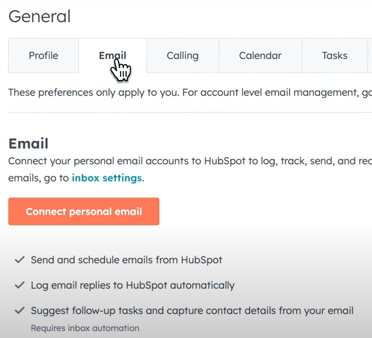
1. Go to Settings and select General under Your Preferences.
2. Click Email.
3. Click the orange box that says Connect personal email.
4. Select Turn on inbox automation.
This allows the HubSpot CRM to actively update and pull extra details from the emails you receive from prospects, such as:
- Name
- Phone number
- Job title
- Address
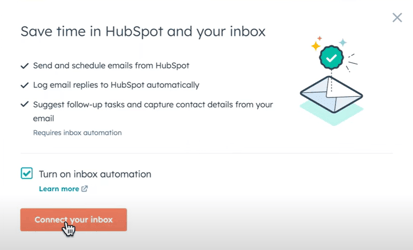
5. Click Connect your inbox and type in your email.
6. Click Next, and click Connect to Outlook 365.
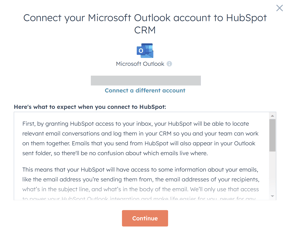
6. Click Continue on the Outlook pop-ups that request for you to Sign into HubSpot.
7. Allow HubSpot to access your Outlook account.
8. Once you are notified that your Outlook is connected to HubSpot, select Download Extension.
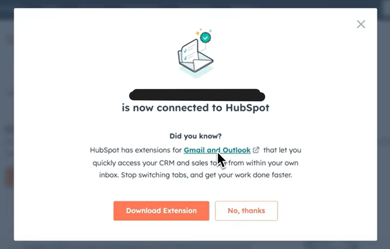
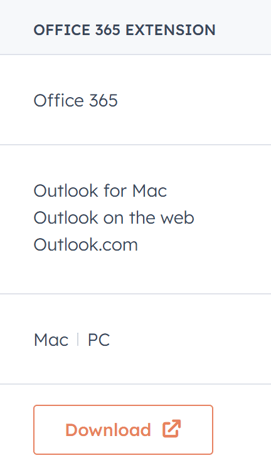
9. A screen will pop up with a matrix showing different HubSpot Sales Extensions to download. Select Office 365 Extension.
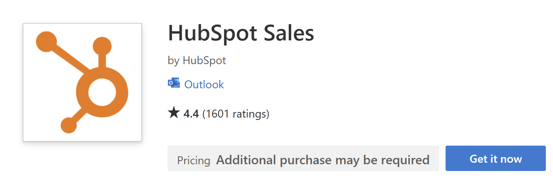
 10. This will direct you to the HubSpot Sales app in the Microsoft AppSource. Click Get it now.
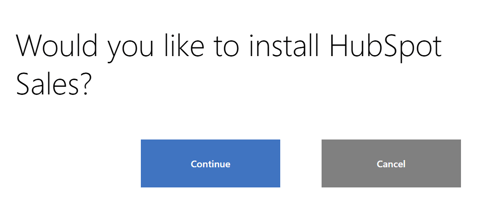
11. Click Continue on the pop-up page.
 12. You'll be taken to your Office 365 account. Click Add.
After the installation is complete, you will be directed to a confirmation page indicating that the add-in has been successfully installed. You can then access your templates, documents, and sequences directly from your Outlook inbox.