![Goodwood-FullLogo-Black.svg]](https://support.goodwood-consulting.com/hubfs/Goodwood-FullLogo-Black.svg)
Users with Sales access can upload and share documents freely. Those without Sales access can view and share only the first five documents uploaded to the account. For example, if an account already has five or more documents, users without Sales access will be limited to viewing and sharing those initial five documents. If no documents exist in the account, these users can upload up to five documents themselves.
You can track the total number of documents in your account by checking the document count displayed in the top right corner of the Documents dashboard. For more details about these limits, refer to HubSpot's Product & Services catalog.
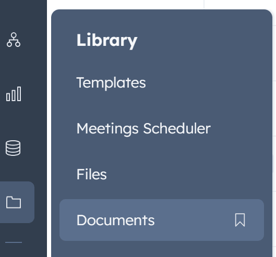
1. Navigate to Library > Documents.
2. In the top right, click Upload document.
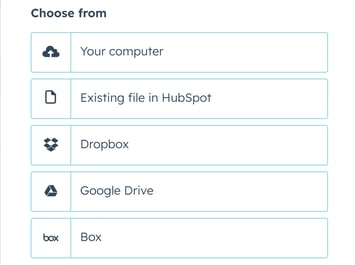
3. Select the import source for your file.
The format of your file must be .pptx, .pdf, .docx, or .xlsx.
The document will appear in your documents dashboard once it's uploaded.