
After a member of Blueprint's team will email over a Word Doc or Google Doc with a copy of the TFPN Commentary:
- Open the document
- Log into Blueprint's WP account at https://blueprintip.com/wp-admin/
- Follow the steps under "Stage Webpage" in this Google Doc (provided by Blueprint) to stage the webpage
- Below are the steps as in the Google Doc:
-
Either way, once it’s clear it’s time to prep the website, do so:
- Log into website
- Select “TFPN Commentary” on the left-hand black menu
- Click the Add New button
- Enter the month and year as the page title up top (e.g., December 2023)
Use the Word doc in Blueprint\Content and Marketing\Monthly - Quarterly Notes\TFPN to prep the webpage:
- SEO page title
- Slug
- Metatag description
- Date (this gets updated in the right-hand panel)
- Upload net exposure visual from Blueprint\Content and Marketing\Monthly - Quarterly Notes\TFPN
- While uploading, put in appropriate sub-folder in TFPN Commentaries > YYYY
- Add alt text that’s in the Word doc
- Also set the image as the featured image (right-hand panel)
- Use the 40 fields to enter the holdings and whether they are long or short
- Copy/paste the overview and driver sections from the Word doc:
- Verify paragraph breaks, links, bolding, etc.
- If these sections are in the Word doc, copy/paste them:
- PM note:
- Add a horizontal line at the top of the section
- After the horizontal line, add “Portfolio Managers’ Note” in Heading 2
- Sourcing
- PM note:
- Save/schedule the page
Preview webpage to make sure everything looks as expected and:
- Double check all holdings and whether they are long/short
- Verify links work as expected
- Verify that all disclaimers are showing — if not, they may need to be added via Beaver Builder > Themer Layouts
-
- Below are the steps as in the Google Doc:
- For the disclosures section:
- The TFPN Commentary document they sent over should include the disclosures needed for each post (typically included at the bottom of the document)
- On the black left side bar in WordPress, scroll down and click Beaver Builder
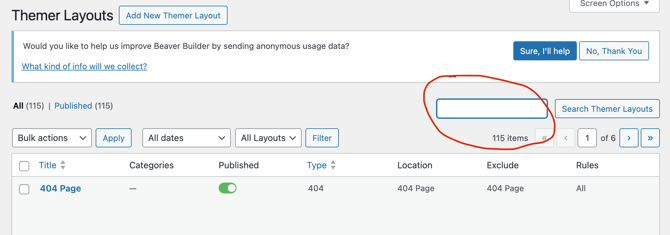
- Search for the disclosures in the search box. If you cannot find it, you can reference this Google Sheets with all the disclosures for each Blueprint site (each site has its own tab at the bottom of the Google Sheet)
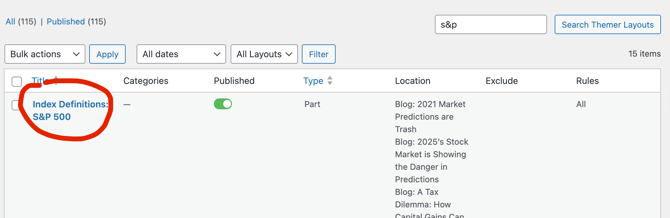
- Click on the disclosure that you want to add
- In the Themer Layout Settings box, in the Location section, scroll down to the bottom and click Add Location Rule
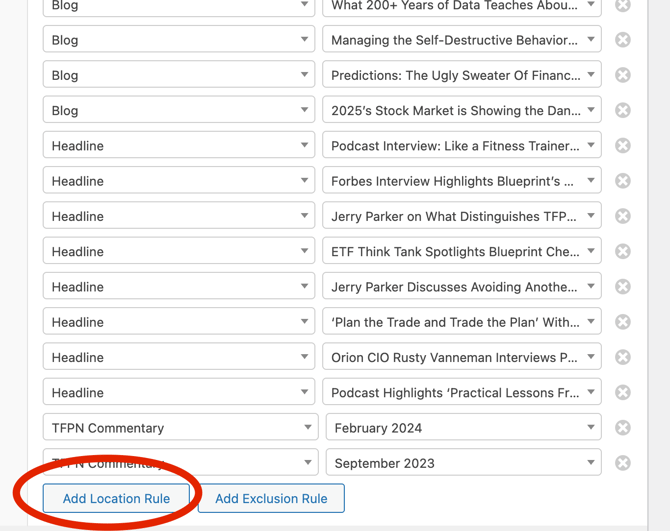
- In the first box, select TFPN Commentary. In the second box, select the name of the TFPN Commentary page you just staged
- Scroll up to the top of the Edit Themer Layout page and click the blue Update button on the right side of the page (in the Publish box)
- Repeat this step for the other disclosures on this month's TFPN Commentary document
- Go back to the TFPN Commentary page that you staged and view the preview, making sure that the disclosures are populating correctly (they will be found at the bottom of the preview)
- If there are duplicates of the disclosures, go back to Beaver Builder in WP and remove the disclosure you created for the page (there is a duplicate because a Beaver Builder has already been made to be included on all TFPN Commentary pages).
- Send a link to the preview to Blueprint's team